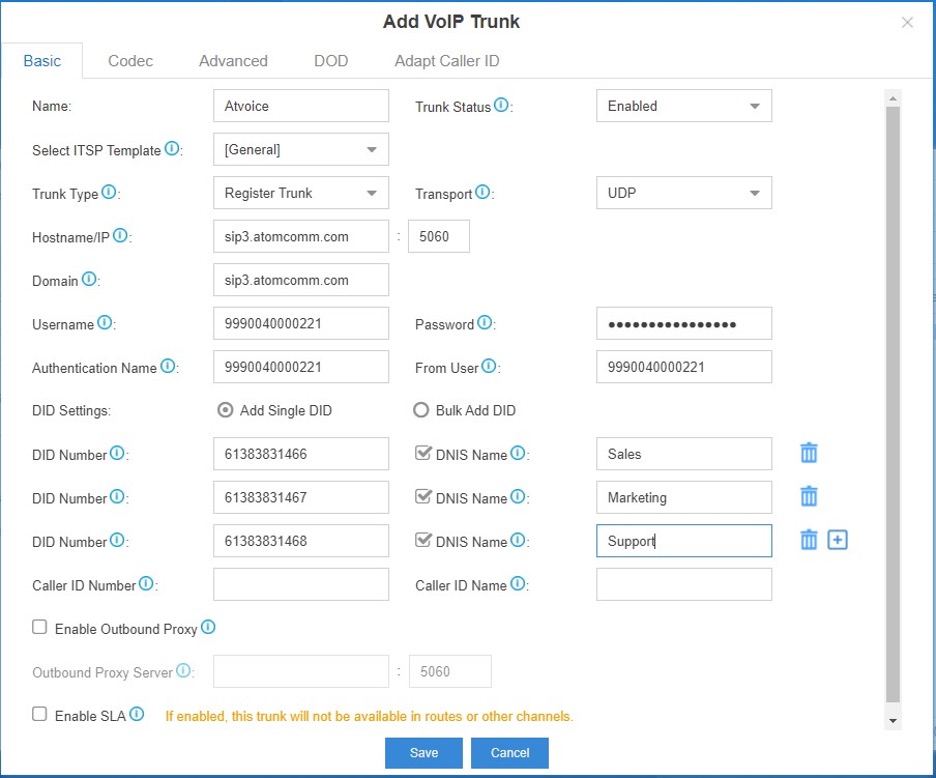
On Yeastar Management Portal
Hostname/IP: sip3.atomcomm.com
Domain: sip3.atomcomm.com
Username: Your SIP End Point Username
Password: Your SIP End Point Password
Authenticate: Your SIP End Point Username
From User: Your SIP End Point UsernameIf you have DID's associated to the your Atomic Service, you can follow the instructions below before saving your setup. If not, just go ahead and save the trunk.
Once your trunk has been created, you can check the status on PBX Monitor as well as on the Atomic portal under Accounts > Connections > SIP End Point. If everything has been entered correctly, you should see the label as Connected.
Once a trunk has been created, you can then add DID's that is associated to your trunk. To do this, you will need to Edit the trunk you have previously created in the earlier step.
Under DID Number field, enter the DID number and select DNIS Name and give the number a friendly name. Continue to add more DID numbers by clicking on the "+".
<aside> ⚠️ The DID numbers you enter here must exactly match the DID numbers, including the format that you get from the Atomic portal. If you have a DID with this number 61283176200 and the Number Format for that DID is set as E.164, you will enter the number exactly as 61283176200. If you have the Number Format for the DID setup as Domestic, you will enter the number exactly as 0283176200.
</aside>
The default Outbound Route (with dial pattern X.) allows you to pass all calls dialled by a user as is to the Atomic platform.
<aside>
⚠️ The dial format will depend on what you have setup the Service for in the Atomic portal over in the Service setting page, under Dial Format. Example:-
Calling Number - 0488888888
If Dial Format is set as Domestic, dial 0488888888; If Dial Format is set as E.164, dial 61488888888
</aside>