<aside> 🔌
▸ SETUP · STEP № 00
Get Tempest Combat Framework running in your project. Three steps, five minutes.
</aside>
Install Tempest Combat Framework to your Unreal Engine version through Fab (or the Epic Games Launcher → Library → Vault). Once it's installed for the engine version, the plugin becomes available to add to any project.
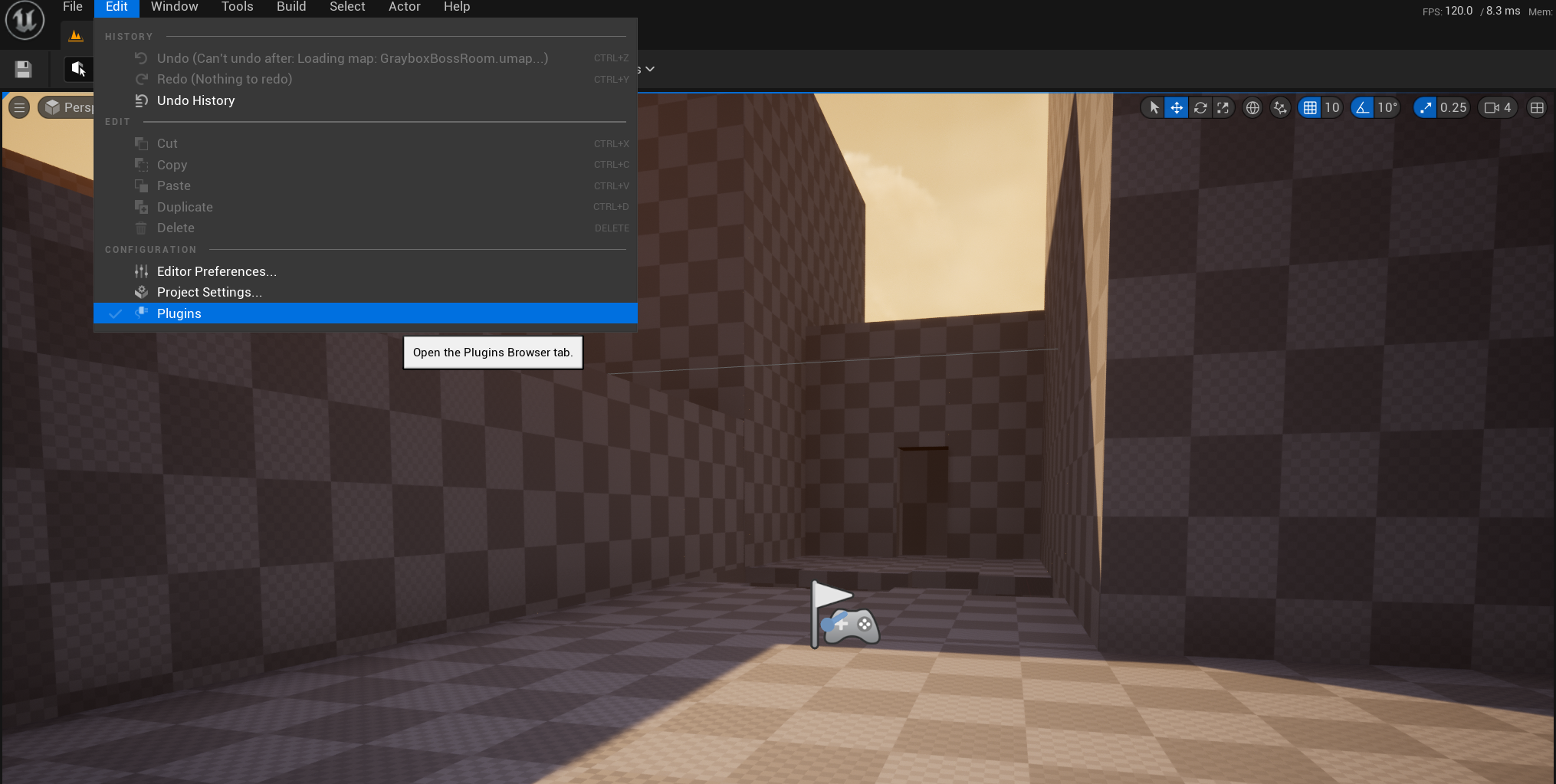
Open your project, then go to Edit → Plugins.
Edit Menu in Unreal
In the Plugins browser search bar, type "Tempest Combat Framework" and tick the Enabled checkbox. Restart the editor when prompted.
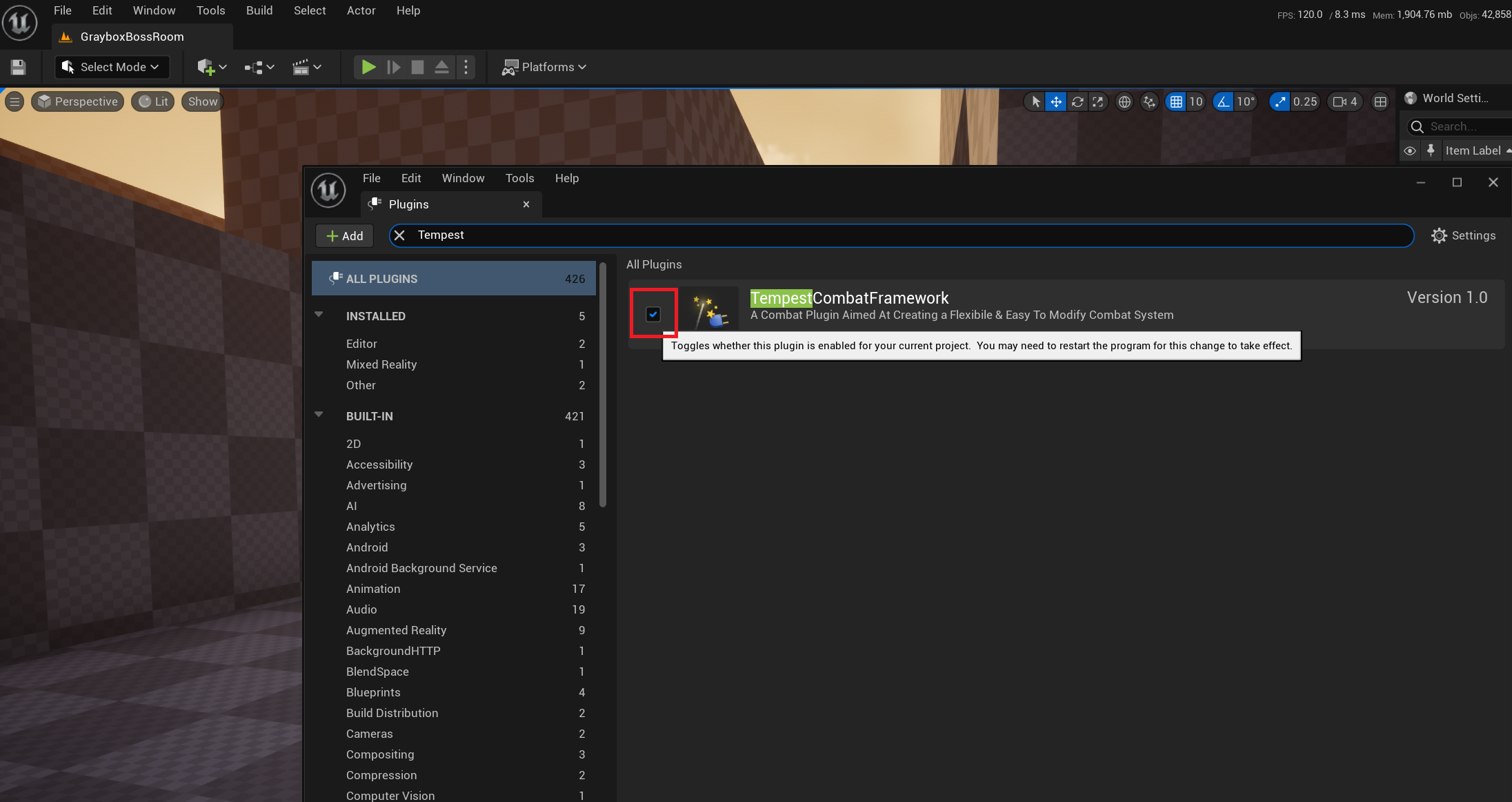
Plugins Menu
Once the editor restarts, you should see the TCF content folders show up in the Content Browser under Plugins → Tempest Combat Framework Content. You're now ready to use the framework.
<aside> 📦
Required engine plugins (TCF will list these as dependencies; UE will offer to enable them automatically):
<aside> ⚠️
Do not modify files inside the plugin's Content folder. All your customisations, child Blueprints, and game-specific logic should live in your project's Content folder, not inside the plugin itself. This keeps your project clean and lets you safely update TCF in the future.
</aside>