Click on My Flows. On the top menu bar select New Flow > Automated cloud flow
Under Flow Name, give it a descriptive name like "Receive SMS from @voice" and leave everything blank and click on Skip
Type in "Request" in the search field and select Request

Under the Triggers, select When an HTTP request is received. A URL will automatically be created once you complete the flow.
Click on Next Step and type in Mail and select Send an email notification
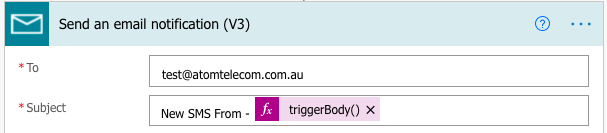
In the To field, enter the email address that you want to send the notification to
When you click in the Subject field a pop-up will appear. Select Expression and paste this syntaxand click on OK.
triggerBody().from
You can add "New SMS From -" at the front of the Subject field as belowThis will mean the the Subject of the email will appear as "New SMS From - {Sender Number}".
In the Body, you can pre-type as per below:
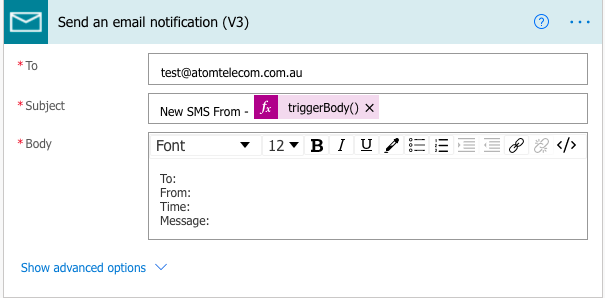
Next, click next to the "To:", and from the pop-up, click on Expression and paste this syntaxand click on OK.
triggerBody().to
Click next to the "From:", and from the pop-up, click on Expression and paste this syntaxand click on OK.
triggerBody().from
Click next to the "Time:", and from the pop-up, click on Expression and paste this syntaxand click on OK. Please be mindful that the timestamp will show as a GMT 0 timezone.
triggerBody().timestamp
Click next to the "Message:", and from the pop-up, click on Expression and paste this syntaxand click on OK.
triggerBody().message
The final result should look something like this
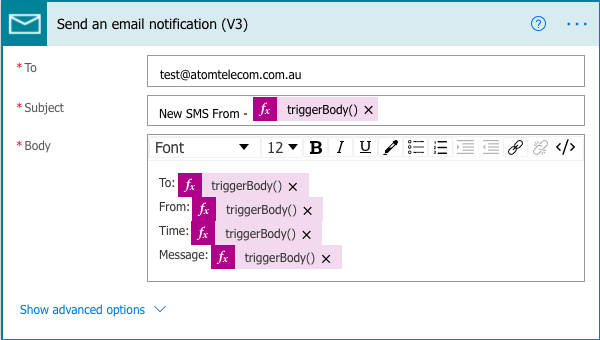
You can now click on Save
Go back to the first trigger and click on When a HTTP request is received and copy the URL provided
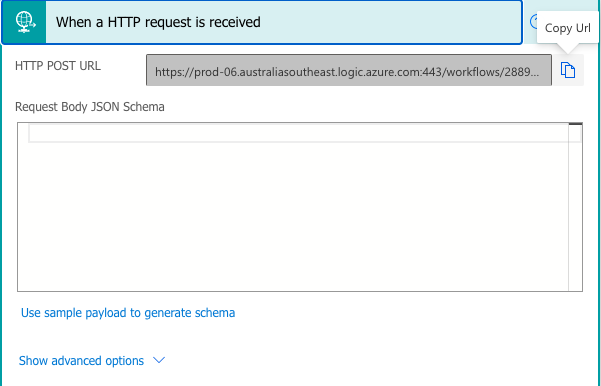
Log in to your @voice portal and head over to Accounts > List All